
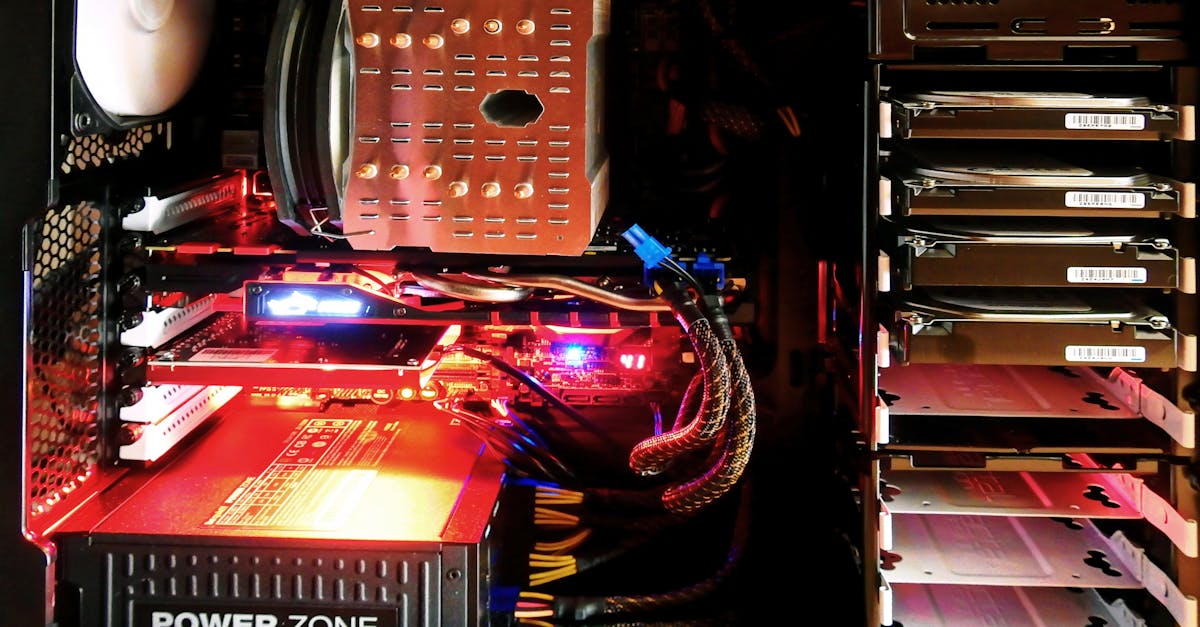
In the world of gaming and graphic design, a powerful GPU can feel like a superhero in a land of sidekicks. But what if that superhero could level up? Overclocking a GPU is like giving it a double shot of espresso—it cranks up performance and makes those demanding tasks feel like a walk in the park.
Table of Contents
ToggleUnderstanding GPU Overclocking
Overclocking a GPU involves increasing its clock speed beyond the manufacturer’s specifications. This practice boosts performance, allowing the GPU to handle tasks like gaming and graphic design more effectively.
What Is Overclocking?
Overclocking refers to the process of adjusting the clock speeds of a GPU to enhance performance. Users typically modify the core frequency and memory speed to achieve higher frame rates and smoother visuals. Monitor temperatures during overclocking, as excessive heat can lead to hardware damage. Many software tools simplify this adjustment process, enabling users to customize settings efficiently.
Benefits of Overclocking a GPU
Overclocking a GPU presents several advantages. Improved frame rates create a more enjoyable gaming experience, as smoother graphics enhance gameplay. Increased performance also allows for better handling of resource-intensive applications, benefiting tasks like 3D rendering and video editing. Additionally, users may save money by extending the life of their existing hardware rather than purchasing a new GPU. Many gamers find that overclocking leads to greater satisfaction, as it maximizes the capabilities of their investments.
Preparing for Overclocking
Preparation is key for successful GPU overclocking. Ensuring that the system is compatible with the new settings and using the right tools make the process smoother and safer.
Checking System Compatibility
Compatibility checks prevent issues during overclocking. Verify that the GPU supports overclocking to avoid any potential problems. Assess the power supply unit to ensure it provides enough wattage for increased performance demands. Monitor the temperature of the GPU while under load; optimal cooling solutions prevent overheating. Confirm sufficient RAM and a capable CPU to handle the overclocked GPU. If any components are not compatible, consider upgrades before proceeding.
Tools and Software Needed
Using the right tools simplifies overclocking. Download GPU monitoring software, such as MSI Afterburner or GPU-Z, for real-time performance statistics. Benchmarking tools like 3DMark or Unigine Heaven help measure performance improvements. Stress testing software verifies stability after adjustments. Ensure you have thermal paste on hand for potential cooling upgrades. Fans or additional cooling solutions aid in temperature management. Having these tools ready enhances the overall experience and ensures more effective overclocking.
Step-by-Step Guide to Overclock a GPU
Overclocking a GPU involves specific steps to enhance performance. Users can follow these detailed instructions for optimal results.
Increasing Core Clock Speed
First, access the overclocking software, such as MSI Afterburner or EVGA Precision X1. The core clock speed can then be adjusted in small increments, typically by 10-20 MHz at a time. Applying these changes allows for adjustments to be tested for stability. After increasing the speed, a stress test through benchmarking tools, like 3DMark or Unigine Heaven, can evaluate the performance gains. Users can monitor temperature levels during this process to ensure the GPU remains within safe operating ranges. Avoid temperatures exceeding 85°C to prevent potential damage.
Adjusting Memory Clock Speed
Next, memory clock speed adjustments can occur for further performance boosts. Again, starting with small increments of 25-50 MHz ensures a more reliable overclocking experience. Monitor for any artifacts or instability during testing. If issues arise, reverting to a stable setting is crucial. Benchmarking software used earlier can assist in evaluating changes. Performance can significantly improve, enhancing frame rates in graphics-intensive applications. Keeping track of the adjustments in a log helps document the successful configurations made.
Testing Stability and Performance
After adjusting clock speeds, thorough testing ensures system stability. Using stress testing software, like FurMark or AIDA64, measures the GPU’s reliability under heavy loads. Users must observe system responsiveness during extended tests, confirming no crashes or artifacts appear. Monitoring software, such as HWMonitor, provides invaluable real-time information on temperatures and usage statistics. If the GPU experiences instability, previous settings should be reinstated. Successful overclocking involves patience and careful adjustments, enabling users to achieve optimal performance without compromising hardware integrity.
Monitoring Temperature and Power Consumption
Monitoring temperature and power consumption is crucial during GPU overclocking. Keeping track of these factors prevents potential hardware damage.
Keeping an Eye on Thermals
Thermal management plays a vital role in ensuring GPU longevity and performance stability. Checking temperatures regularly helps identify overheating issues. Use reliable GPU monitoring software like MSI Afterburner or HWMonitor for real-time temperature readings. It’s recommended to keep GPU temperatures below 85°C to avoid thermal throttling. Lower temperatures can be achieved with effective cooling solutions such as aftermarket coolers or improved airflow in the case. Adjusting fan speeds and applying thermal paste can also enhance heat dissipation.
Power Supply Considerations
A powerful GPU demands a capable power supply unit (PSU) to support overclocking. Evaluating the wattage and efficiency of a PSU ensures it can handle increased power demands. It’s essential to select a PSU with at least a 20% higher wattage than the total system consumption. Ensure the PSU provides sufficient connectors for the GPU’s power requirements. Quality matters; using a reliable, efficient brand minimizes the risk of power-related issues. Regularly monitor power consumption levels to maintain system stability during intense workloads.
Conclusion
Overclocking a GPU can significantly enhance gaming and graphic design experiences. By carefully adjusting clock speeds and ensuring proper cooling, users can unlock their GPU’s full potential. This process not only improves frame rates and visual quality but also extends the lifespan of existing hardware.
With the right tools and preparation, anyone can navigate the overclocking journey. Monitoring temperatures and power consumption is crucial for maintaining hardware integrity. By taking a methodical approach and being patient, users can enjoy the benefits of a more powerful GPU, leading to a satisfying and immersive experience in demanding applications.


